Notes about Zoom
- Zoom
- Japanese version -> zoom-jp.md
Outline
- Outline
- Enable the following Zoom Webinar settings for Virtual Workshop
- Steps to configuring Zoom settings
- Useful shortcuts
- Roles in a webinar | Zoom Help
- Zoom Meeting vs. Zoom Webinar
- Zoom's Waiting Rooms Are Not Very Customizable
- Getting Attendees' Feedback Over Zoom
- Sharing a Video on Zoom - Superior Method
Enable the following Zoom Webinar settings for Virtual Workshop
- Webinar practice session | Zoom Doc
- This allows the hosts to configure their Zoom settings before sharing with attendees.
- When you are ready, click Broadcast to start the webinar and allow attendees to join the webinar.
- Question & Answer (Q&A) | Zoom Doc
- Allows for a better experience of attendees asking questions and co-hosts answering them on an individual basis.
- Once the Webinar has started, allow attendees to see other's questions | See attached screenshot
- Recording setting to record active speaker, gallery view, and shared screen separately | Zoom Doc
- By recording the Webinar without participant's faces, we can share the video publicly
Steps to configuring Zoom settings
- See attached video
- Visit https://cybozu.zoom.us/webinar/list
- Schedule a webinar, or click the title of a webinar that's already scheduled.
- Click Edit this Webinar.
- In the Webinar Options section, check the following boxes:
- Q&A
- Enable Practice Session
- Record the Webinar automatically
- Visit https://cybozu.zoom.us/profile/setting?tab=recording
- Under Cloud recording > enable Record active speaker, gallery view, and shared screen separately
Useful shortcuts
| Shortcut | English | 日本語 |
|---|---|---|
| Command(⌘)+Shift+P | Pause or resume recording | 録音を一時停止または再開する |
| Command(⌘)+Shift+W | Switch between active speaker view or gallery view | アクティブなスピーカービューまたはギャラリービューを切り替える |
| Command(⌘)+U | Display/hide Participants panel | 参加者パネルの表示/非表示 |
| Command(⌘)+Shift+H | Show/hide In-Meeting Chat Panel | 会議中チャットパネルの表示/非表示 |
| Ctrl+Option+Command+H | Show/hide meeting controls | 会議コントロールの表示/非表示 |
| Command(⌘)+W | Prompt to End or Leave Meeting | 会議を辞める |
Roles in a webinar | Zoom Help
- Host of the webinar is the user who the webinar is scheduled under.
- Has full permissions to manage the webinar, panelists, and attendees.
- Alternative Host are users who have the same permissions as a Host.
- They are assigned ahead of time & can start meetings.
- Co-hosts share many of the controls that hosts have but cannot start the webinar.
- The host must assign a co-host and can only be assigned during a meeting, and thus cannot start a meeting.
- If a host needs someone else to start the webinar --> assign an alternative host.
- Panelists are full participants in a webinar.
- They can view and send video, screen share, annotate, etc.
- Host must assign a panelist. --> Inviting panelists to a webinar
- Attendees are view-only participants who can be unmuted if the host chooses.
- Can only interact with the host and the panelists through the Q&A and the chat.
Zoom Meeting vs. Zoom Webinar
Here is a rundown of the differences between the two.
For more details, refer to the official Help Doc: Meeting and webinar comparison - Zoom Help Center
TL;DR
- Webinar's Strength: Simpler interface for attendees, Q&A function, & Post attendee URL
- Webinar's Weakness: Guests cannot turn on their cameras by default. Need to be promoted...
| Meeting | Webinar |
|---|---|
| Use for hosting small to large groups | Use for large events & public broadcasts (50+ attendees) |
| Sales meetings, training sessions | Town halls, College lecture, Musical events |
| Free & Paid subscriptions | Extra cost as Paid Add-on |
Comparing the features (Differences)
| Feature | Meeting | Webinar |
|---|---|---|
| Participant roles | Host, Co-host, & Participants | Host, Co-hosts, Panelist, & Attendees |
| Audio sharing | All participants can mute/unmute their own audio | Only the Host & panelists can mute/unmute their own audio; Attendees join in listen-only mode; Host can unmute the attendees |
| Video sharing | All participants | Hosts & Panelists Only |
| Capacity | Up to 100 with a free license, up to 1,000 depending on the plan and large meeting add-on. | Up to 100-10,000 participants, depending on the license. |
| Participants list | Visible to all participants | Visible to host and panelist |
| Email reminders | N/A | If registration is enabled |
| Chat | In-meeting Chat; Basic text & file attachment | Webinar chat; ranking, answering, more |
| Meeting reactions | ✔ | N/A |
| Nonverbal feedback | ✔ | Only raise hand |
| Q&A | N/A | ✔ |
| File transfer | ✔ | N/A |
| Breakout rooms | ✔ | N/A |
| Practice session | N/A | ✔ |
| Waiting room | ✔ | N/A |
| Paypal integration | N/A | ✔ |
Following are the same & available to both:
- Annotation
- Screen sharing
- Whiteboard
- Closed captioning
- International dial-in numbers
- Livestream (Facebook, YouTube, Workplace by Facebook, Custom Streaming Service)
- Polling
- Recording
- Registration
- Require password to join
Zoom's Waiting Rooms Are Not Very Customizable
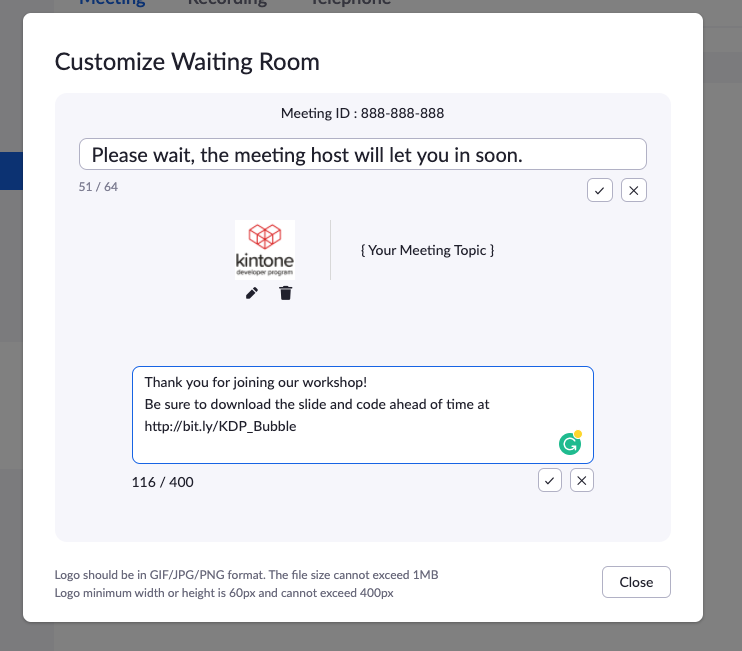
- Only a tiny (100 x 100 px) logo can be placed.
- Text description can be added, but it is not clickable (users cannot click or copy a link).
- Waiting Room | Zoom's Help Doc
- Waiting Room's Setting:
https://cybozu.zoom.us/profile/setting- Meeting > Security > Waiting Room
Getting Attendees' Feedback Over Zoom
Webinar - Use Post Webinar Survey
- Allows us to redirect normal attendees to our survey website (or any URL) after they leave the Zoom Webinar. (does not work for panelists)
- Unfortunately, it does not work for Meetings, only for Zoom Webinars.
- The biggest drawback to Webinar is that only hosts and panelists can share their video (camera feed).
- We can promote all the attendees to panelists, but it does not go smoothly.
- ⚠ Post attendee URL is an alternative, but its performance is inconsistent. Many IT blogs recommend using the Post Webinar Survey method.
Meeting - Use Poll
- Create a Zoom Poll to collect feedback on how attendees are doing before the break.
- How To Use (In Meeting) Polling in Zoom - YouTube
Sharing a Video on Zoom - Superior Method
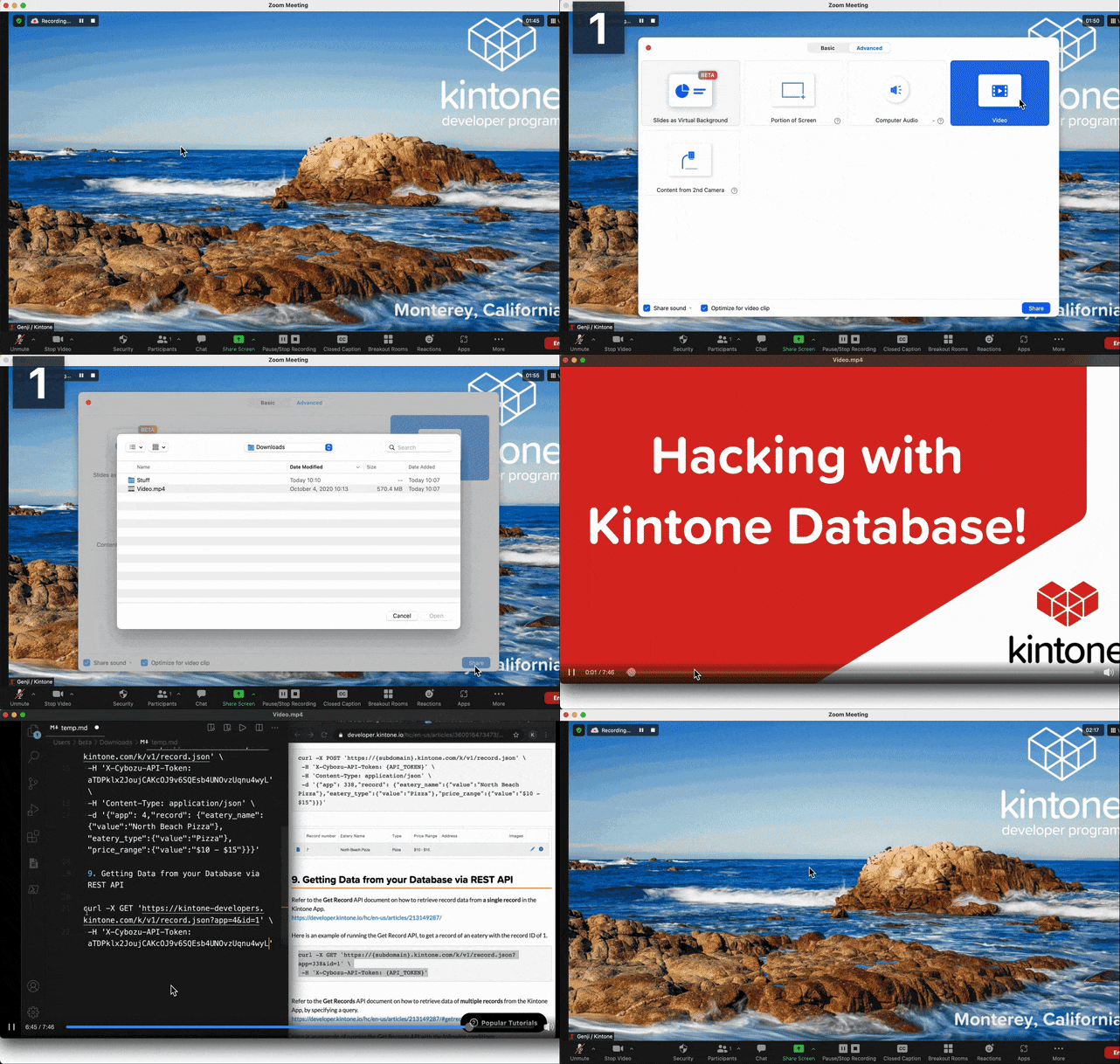
- Download the video in advance
- I recommend Folx - Download manager for Mac
- On Zoom:
- Click Share Screen
 located in your meeting controls.
 - Switch to the Advanced tab
- Then select Video

- Navigate to and select the video you wish to share, then click Open
- The video will now open within Zoom and be visible to attendees!
- Click Share Screen
Zoom Help Doc:
- 日本語 - ビデオの共有
- English - Sharing your video
Here is a demo of sharing a video on Zoom: