Compilation of random notes in using VS Code
Outline
- Display Whitespace in VS Code
- Remove Duplicate Lines in VS Code
- How to install VS Code Extensions Manually?
- VS Code & powerlevel10k
Display Whitespace in VS Code
- It is useful to see whitespace in your code editor.
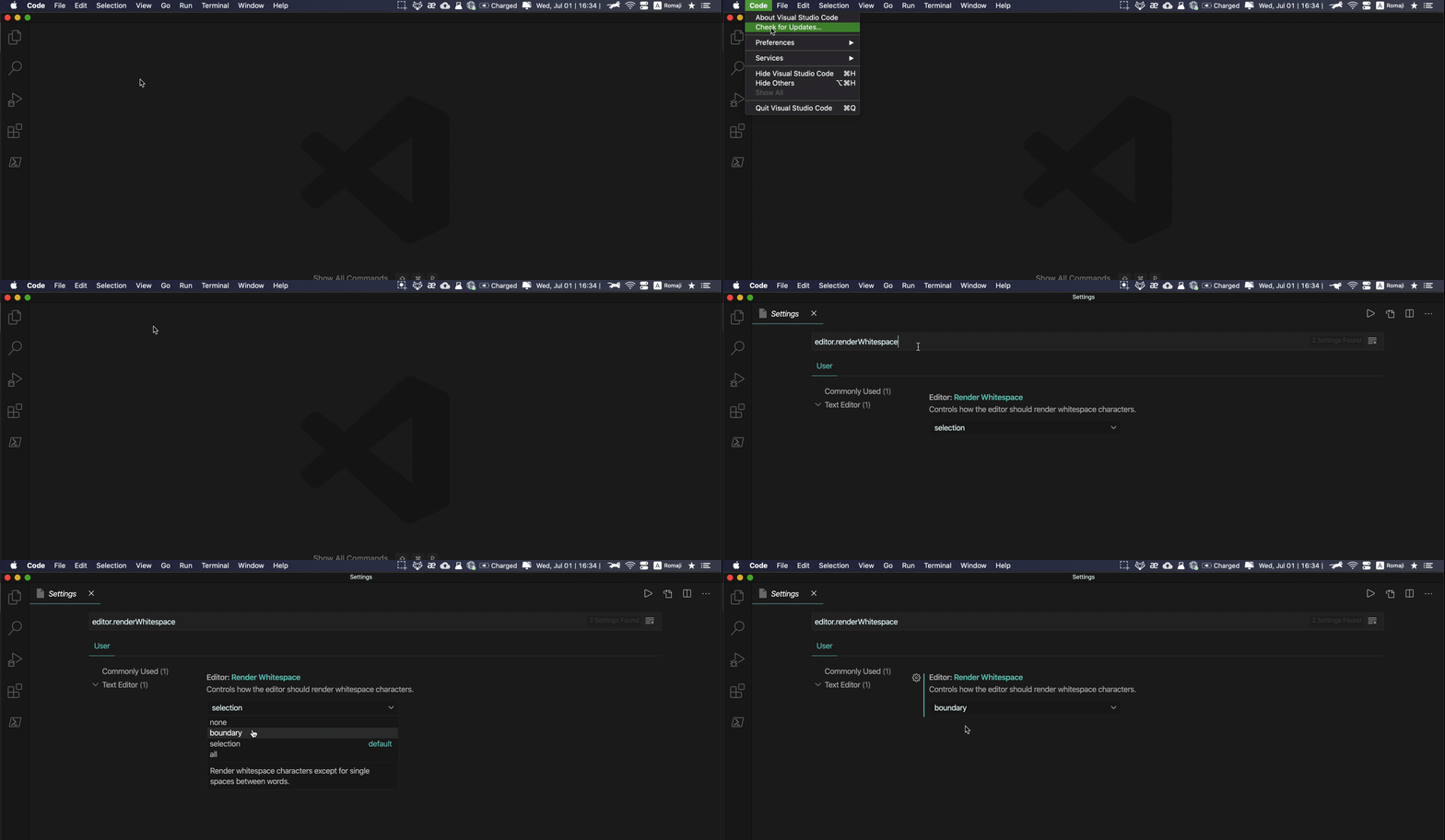
editor.renderWhitespacein the VS Code Setting governs how to display whitespace. It takes in the following input:none- Whitespace will never be displayed.boundary- Whitespace will be displayed except for single spaces between words.section- (Default) Whitespace will be displayed only on selected text.all- All whitespace characters will be displayed all the time.
- I recommend setting
editor.renderWhitespacetoboundary. - To change your VS Code Setting to display whitespace:
- File > Preference > Setting
- Search
editor.renderWhitespace - Select
boundaryfrom the dropdown menu
- Demo gif:
Remove Duplicate Lines in VS Code
If the lines order is not important
- Sort lines alphabetically
- Open VS Code's Find Control:
Control+F - Toggle "Replace mode"
- Toggle "Use Regular Expression" (the icon with the
.*symbol) - In the search field:
^(.*)(\n\1)+$ - In the "replace with" field,:
$1 - Click "Replace All"
If the lines order IS important (can't alphabetically sort)
- In this case, either resort to a solution outside VS Code (example)
- OR if your document is not very large...
- search:
((^[^\S$]*?(?=\S)(?:.*)+$)[\S\s]*?)^\2$(?:\n)? - replace with:
$1 - Click the "Replace All" button (as many times as there are duplicate occurrences)
- search:
How to install VS Code Extensions Manually?
- Based on this Stack Overflow Thread
- Example VS Extension from GitHub: znck/ grammarly
- Go to the GitHub repo's Releases and download the
.vsixfile- https://github.com/znck/grammarly/releases
- -->
grammarly-0.12.2.vsix
- In VS Code, Extensions >
...>Install from VSIX... - Verify the Extension was installed!

VS Code & powerlevel10k
- Install & configure romkatv/powerlevel10k
- See mac-setup article's powerlevel10k section for more details.
- Configure VS Code Setting
- Open File → Preferences → Settings
- For
terminal.integrated.fontFamily, setMesloLGS NF - For
terminal.explorerKind, setexternal - For
terminal.external.osxExec, setiTerm.app