My Mac Setup
Outline
Recommend Mac Apps
PDF Expert - $80
- Download:
- Mac App Store: PDF Expert - Edit and Sign PDF on the Mac App Store
- Developer's Website: https://pdfexpert.com/
- Price: $80
- My Review: Pricey BUT it does 100% of PDF-related tasks & does it well!
- Do you need to read through huge PDF files for your college courses?
- Do you need to edit PDF files constantly for your job?
- Do you fill out countless of PDF forms of various quality with your signature?
- This App is for you!
- Recommendations:
- Get this app via Mac App Store & share it with your family via iCloud!
CleanMyMac X - $34.99 Per Year or $89.99 One-Time
- Download:
- Mac App Store: CleanMyMac X on the Mac App Store
- Developer's Website: CleanMyMac X: The Best Mac Cleanup App for macOS
- Price:
- CleanMyMac X Yearly Access $34.99
- CleanMyMac X One-Time Purchase $89.99
- Included in Setapp Subscription - CleanMyMac X on Setapp
- My Review:
- A MUST have Mac App to keep your machine working like a charm!
- Powerful App Update & Uninstall tools!
- Clear RAM easily & delete any files on your Mac!
- Malware removal - Perform an in-depth check-up of your Mac for all kinds of vulnerabilities.
- Privacy - Instantly remove your browsing history, along with online & offline activity traces.
- Recommendations:
- Get this app via the Setapp Subscription!~
Sensible Paster - free
- Download: Sensible Paster on the Mac App Store
- Price: free
- My Review: 5/5; Best Japanese OCR App for Mac; Secure as the OCR is done locally!
- Real basic, but it works! It picks up most Japanese on my screen with high accuracy.
- Works on M1 & Intel Macs
- Japanese & English language support!
Rocket - free / $10
- Download: Rocket - the best emoji app for Mac
- Price: free or $10 upgrade
- My Review: 5/5; GET THE UPGRADE! It makes your life so much easier
- Rocket is a free Mac app that makes typing emoji faster and easier using auto-complete shortcuts
- Ex: start typing :thumbsup (👍) & Rocket will help auto-complete it - in any app!
- With Rocket Pro ($10) upgrade, add symbols, gifts, & custom snippets, to your Rocket shortcuts.
- Add phone numbers, custom texts, email starters for a powerful experience!
Magnet - $5
- Download: Magnet on the Mac App Store
- Price: $5
- My Review: 5/5; well worth the price!
- Magnet is a fantastic window manager for Macs!
- Recommendations:
- Get this app via Mac App Store & share it with your family via iCloud!
- I use the following shortcuts to move windows between three monitors:
| Magnet Preferences | Shortcut |
|---|---|
| Left | OPTION ⌥ + SHIFT ⇧ + [ |
| Right | OPTION ⌥ + SHIFT ⇧ + ] |
| Up | OPTION ⌥ + SHIFT ⇧ + ↑ |
| Up | OPTION ⌥ + SHIFT ⇧ + ↓ |
| Next Display | OPTION ⌥ + SHIFT ⇧ + \ |
| Previous Display | OPTION ⌥ + SHIFT ⇧ + Enter ↵ |
| Maximize | OPTION ⌥ + SHIFT ⇧ + A |
Mac Development Setup
Xcode x Terminal
- To Install Xcode for the Terminal:
xcode-select --install - To update:
softwareupdate --all --installsoftwareupdate --all --install --force
Terminal Custom Setup
- Background Hex:
#630436 - Text Hex:
#FFFFFF - Font: MesloLGS NF Regular 15
brew tap homebrew/cask-fontsbrew install --cask font-hack-nerd-font
- Selection Hex:
#00C9C1
powerlevel10k - A Zsh theme
Setup powerlevel10k for iTerm2
for your iTerm2
Make sure you installed ryanoasis/nerd-fonts
shellbrew tap homebrew/cask-fonts brew install --cask font-hack-nerd-fontInstall romkatv/powerlevel10k
shell
brew install romkatv/powerlevel10k/powerlevel10k
echo "source $(brew --prefix)/opt/powerlevel10k/powerlevel10k.zsh-theme" >> ~/.zshrc- Go through the
p10k configureconfiguration wizard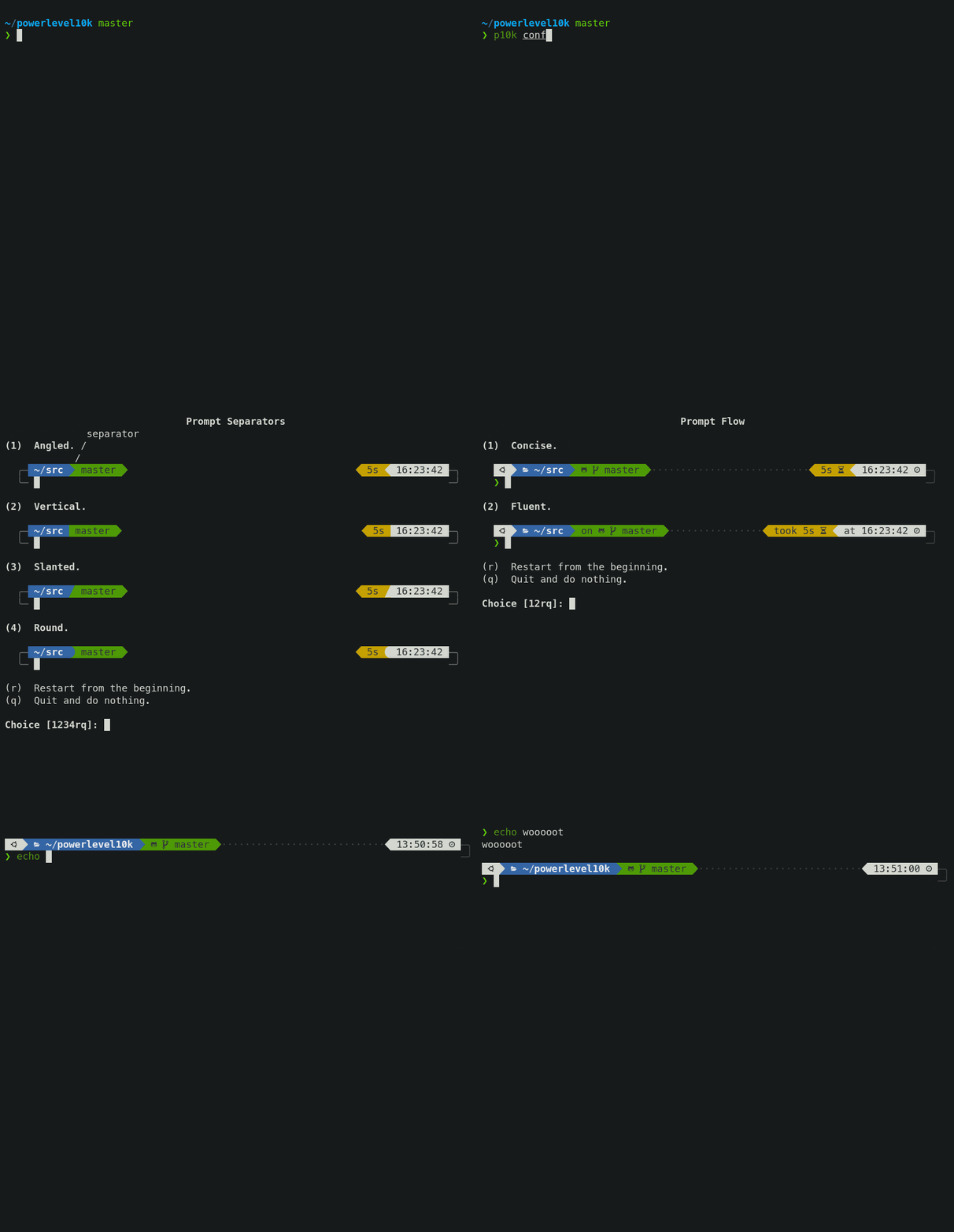
- Type in the choice you want.
- Example:
Choice [12345rq]: ...- 1 ~ 5 are the options
- r is for restarting the configuration wizard
- q is for quitting without saving
Setup powerlevel10k for Apple Terminal & VS Code Terminal
- Install these four tff files to install fonts manually
- Double-click on each file and click "Install". This will make
MesloLGS NFfont available to all applications on your system. - Configure Apple Terminal to use this font:
- Open Terminal → Preferences → Profiles → Text
- Click Change under Font
- Select
MesloLGS NFfamily.
- Configure Visual Studio Code Terminal to use this font:
- Open File → Preferences → Settings (PC) or Code → Preferences → Settings (Mac)
- Enter
terminal.integrated.fontFamilyin the search box at the top of Settings tab - And set the value below to
MesloLGS NF. 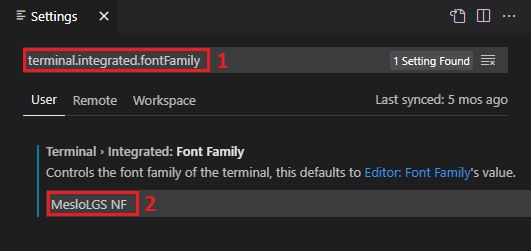
- Run
p10k configureto generate a new~/.p10k.zsh. The old config may work incorrectly with the new font.
brew
- Homebrew or
brewis a package manager for MacOS. brew.sh - It is helpful to manage packages like font-fira-code, git, python, or node.
Useful Commands
| Function | Command |
|---|---|
| Install a package | brew install <formula> |
| Uninstall a package | brew uninstall <formula> |
| List all the installed formulae | brew list |
| Update Homebrew & packages | brew update |
| Display the Homebrew version | brew --version |
| Check for potential system issues | brew doctor |
Useful Packages
| Package | brew | Note |
|---|---|---|
| Node.js | brew install node | JavaScript server environment |
| Git | brew install git | distributed version control system |
| Pandoc | brew install pandoc | Markdown ↔︎ Word Docx |
| ryanoasis/nerd-fonts | brew tap homebrew/cask-fontsbrew install --cask font-hack-nerd-font | Fonts including Fira Code & MesloLGS NF |
| tonsky/FiraCode | brew cask install font-fira-code | Great font for coding |
Python Setup on Mac
Install Pyenv
Steps: https://github.com/pyenv/pyenv#getting-pyenv
shell
# Install Pyenv via brew
brew update
brew install pyenv

# Add the following to ~/.zshrc
echo 'export PYENV_ROOT="$HOME/.pyenv"' >> ~/.zshrc
echo 'command -v pyenv >/dev/null || export PATH="$PYENV_ROOT/bin:$PATH"' >> ~/.zshrc
echo 'eval "$(pyenv init -)"' >> ~/.zshrc

# Restart the terminal
exec "$SHELL"
Use Pyenv
Current Python versions:
Download Python | Python.org
Install additional Python versions:
For example, to download and install Python 3.10.4, run:
shell
pyenv install 3.10.4List of Python versions:
shell
pyenv install --listSwitch between Python versions:
To select a Pyenv-installed Python as the version to use, run one of the following commands:
| Python Version Scope | Command |
|---|---|
| Just for current shell session | pyenv shell <version> |
| Current directory (& subdirectories) Setting | pyenv local <version> |
| Global Setting | pyenv global <version> |
Verify Python version:
shell
python --versionPowerPoint to MD
pptx2md is a tool to convert PowerPoint to Markdown.
Install: pip install pptx2md
Usage: pptx2md filename
Options:
-t [filename]provide the title file-o [filename]path of the output file-i [path]directory of the extracted pictures--image-width [width]the maximum width of the pictures, in px. If set, images are put as html img tag.--disable-imagedisable the image extraction--disable-escapingdo not attempt to escape special characters--disable-wmfkeep wmf formatted image untouched (avoid exceptions under linux)--disable-colordisable color tags in HTML--min-block-size [size]the minimum number of characters for a text block to be outputted--wiki/--mdkif you happen to be using tiddlywiki or madoko, this argument outputs the corresponding markup language