Login and Security
Account login and security UX copy - passkeys, two-step verification, login activity, and trusted-device prompts from Logitech (Logi ID) and Google.
Table of contents
Logi ID example
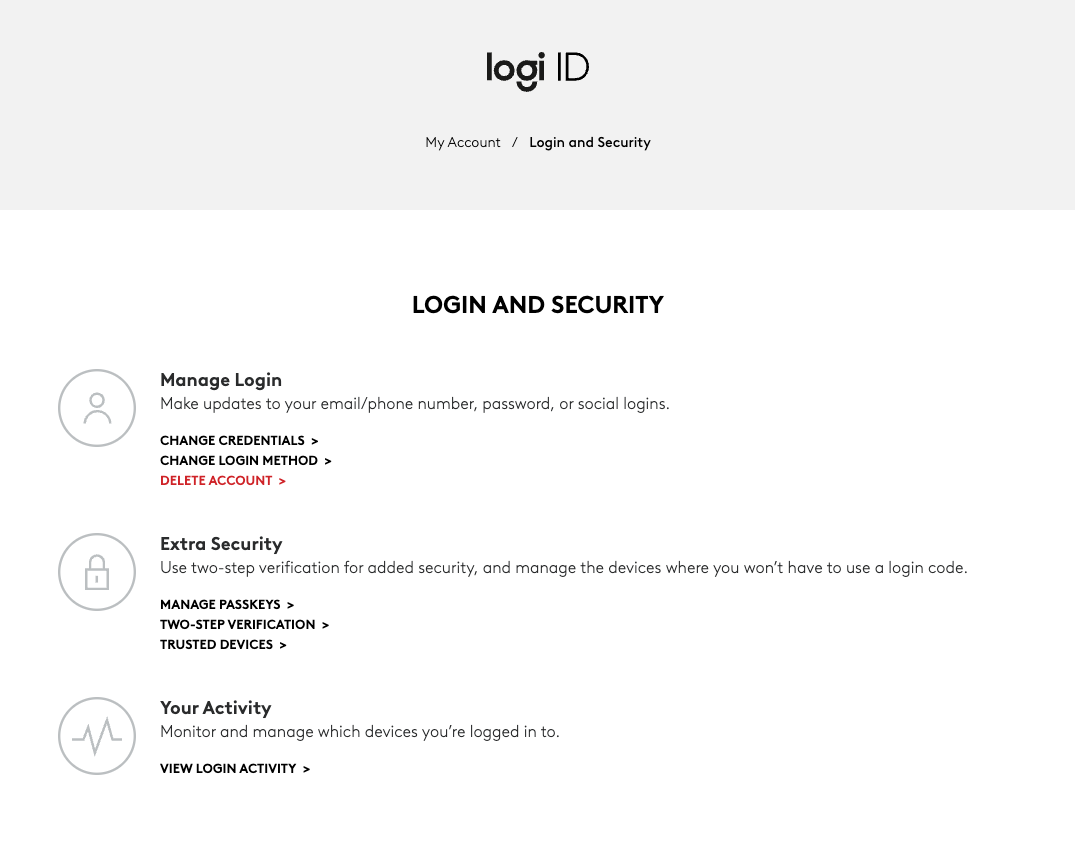
Login and Security hub
Breadcrumb: My Account / Login and Security
Heading: LOGIN AND SECURITY
| Section | Description | Links |
|---|---|---|
| Manage Login | Make updates to your email/phone number, password, or social logins. | [CHANGE CREDENTIALS], [CHANGE LOGIN METHOD], [DELETE ACCOUNT] |
| Extra Security | Use two-step verification for added security, and manage the devices where you won't have to use a login code. | [MANAGE PASSKEYS], [TWO-STEP VERIFICATION], [TRUSTED DEVICES] |
| Your Activity | Monitor and manage which devices you're logged in to. | [VIEW LOGIN ACTIVITY] |
Login Activity
Breadcrumb: My Account / Login and Security / Login Activity
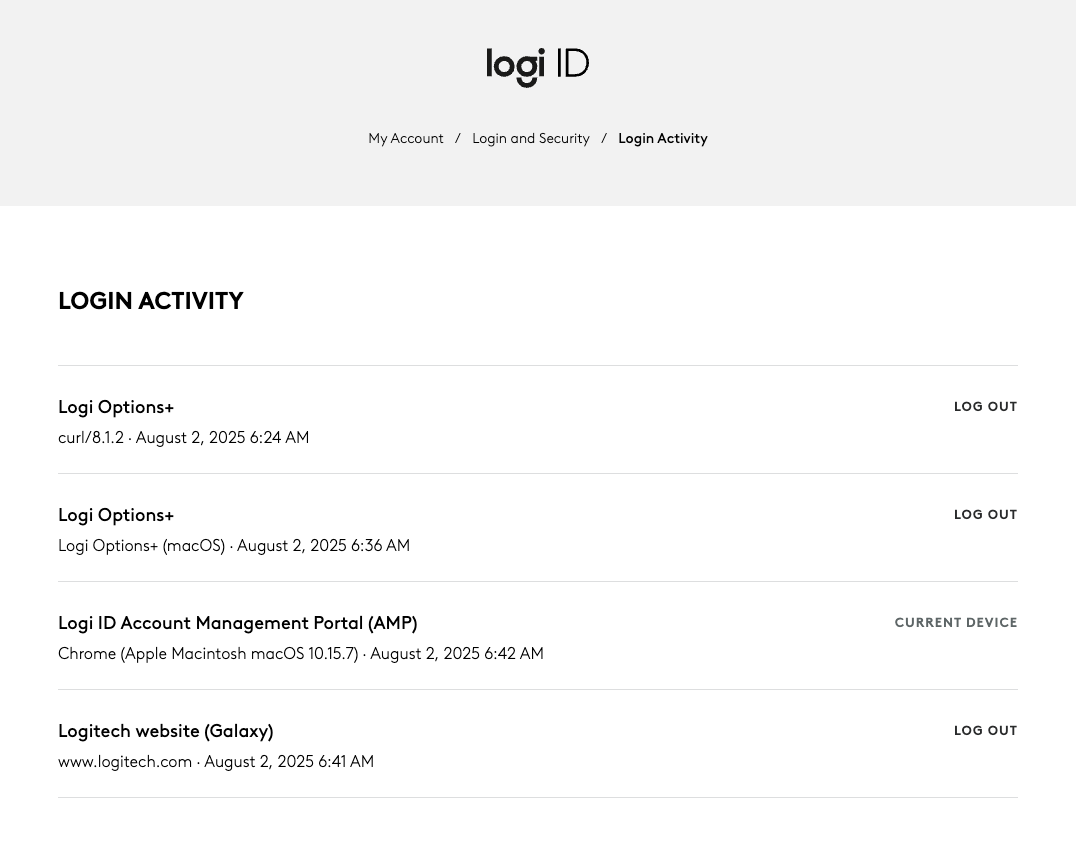
Heading: LOGIN ACTIVITY
Each session lists the app or site, the client and timestamp, and an action.
| App / Site | Client and time | Action |
|---|---|---|
| Logi Options+ | curl/8.1.2 - August 2, 2025 6:24 AM | LOG OUT |
| Logi Options+ | Logi Options+ (macOS) - August 2, 2025 6:36 AM | LOG OUT |
| Logi ID Account Management Portal (AMP) | Chrome (Apple Macintosh macOS 10.15.7) - August 2, 2025 6:42 AM | CURRENT DEVICE |
| Logitech website (Galaxy) | <www.logitech.com> - August 2, 2025 6:41 AM | LOG OUT |
Two-Step Verification
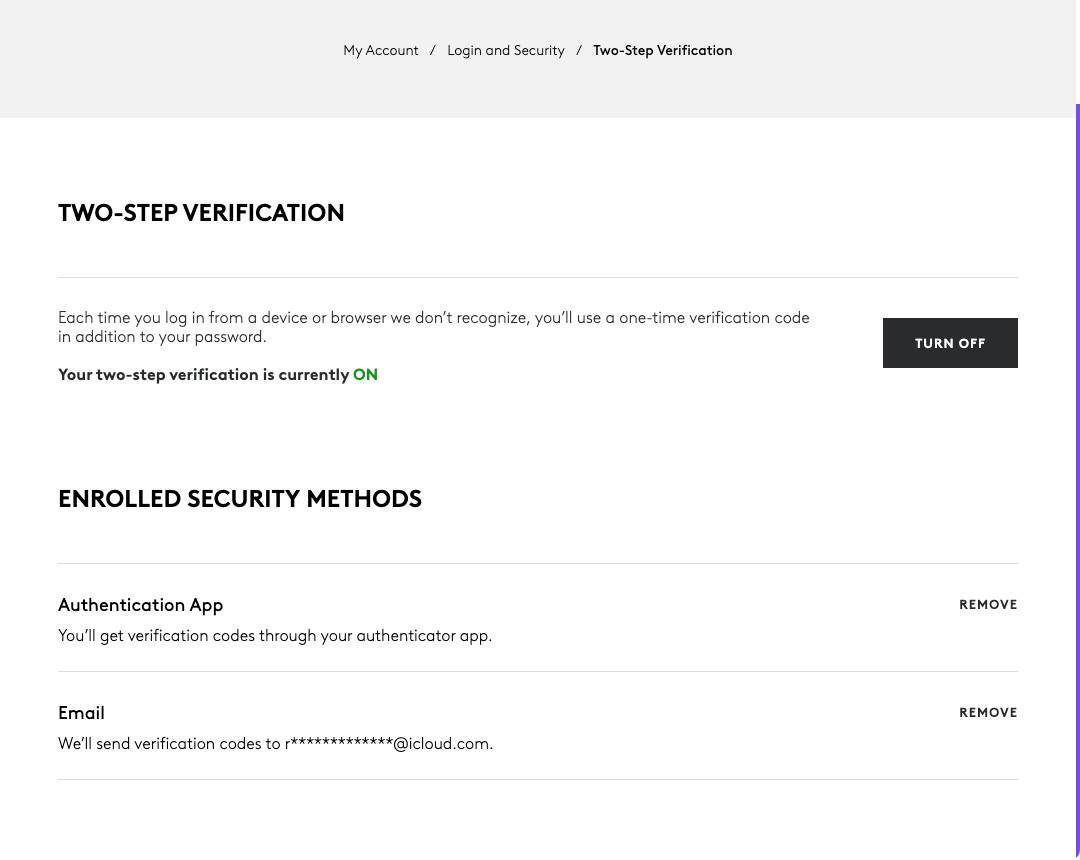
Breadcrumb: My Account / Login and Security / Two-Step Verification
Heading: TWO-STEP VERIFICATION
Body: Each time you log in from a device or browser we don't recognize, you'll use a one-time verification code in addition to your password.
Status: Your two-step verification is currently ON
Button: [TURN OFF]
Heading: ENROLLED SECURITY METHODS
| Method | Description | Action |
|---|---|---|
| Authentication App | You'll get verification codes through your authenticator app. | [REMOVE] |
| We'll send verification codes to r*************@icloud.com. | [REMOVE] |
Passkeys
Breadcrumb: My Account / Login and Security / Passkeys
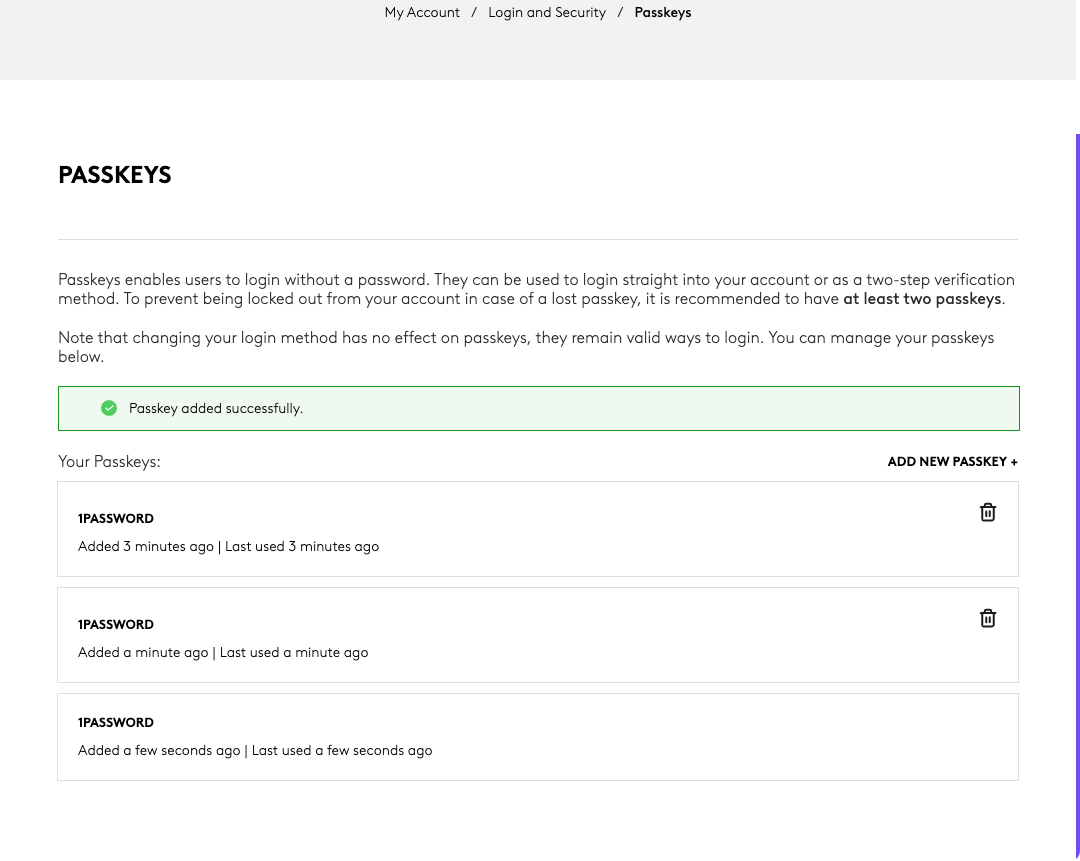
Heading: PASSKEYS
Body: Passkeys enables users to login without a password. They can be used to login straight into your account or as a two-step verification method. To prevent being locked out from your account in case of a lost passkey, it is recommended to have at least two passkeys.
Note that changing your login method has no effect on passkeys, they remain valid ways to login. You can manage your passkeys below.
Success banner: Passkey added successfully.
Label: Your Passkeys:
Button: [ADD NEW PASSKEY +]
Each passkey lists the provider and added / last-used times:
- 1PASSWORD - Added 3 minutes ago | Last used 3 minutes ago
- 1PASSWORD - Added a minute ago | Last used a minute ago
- 1PASSWORD - Added a few seconds ago | Last used a few seconds ago
Google Account example
Passkeys and security keys
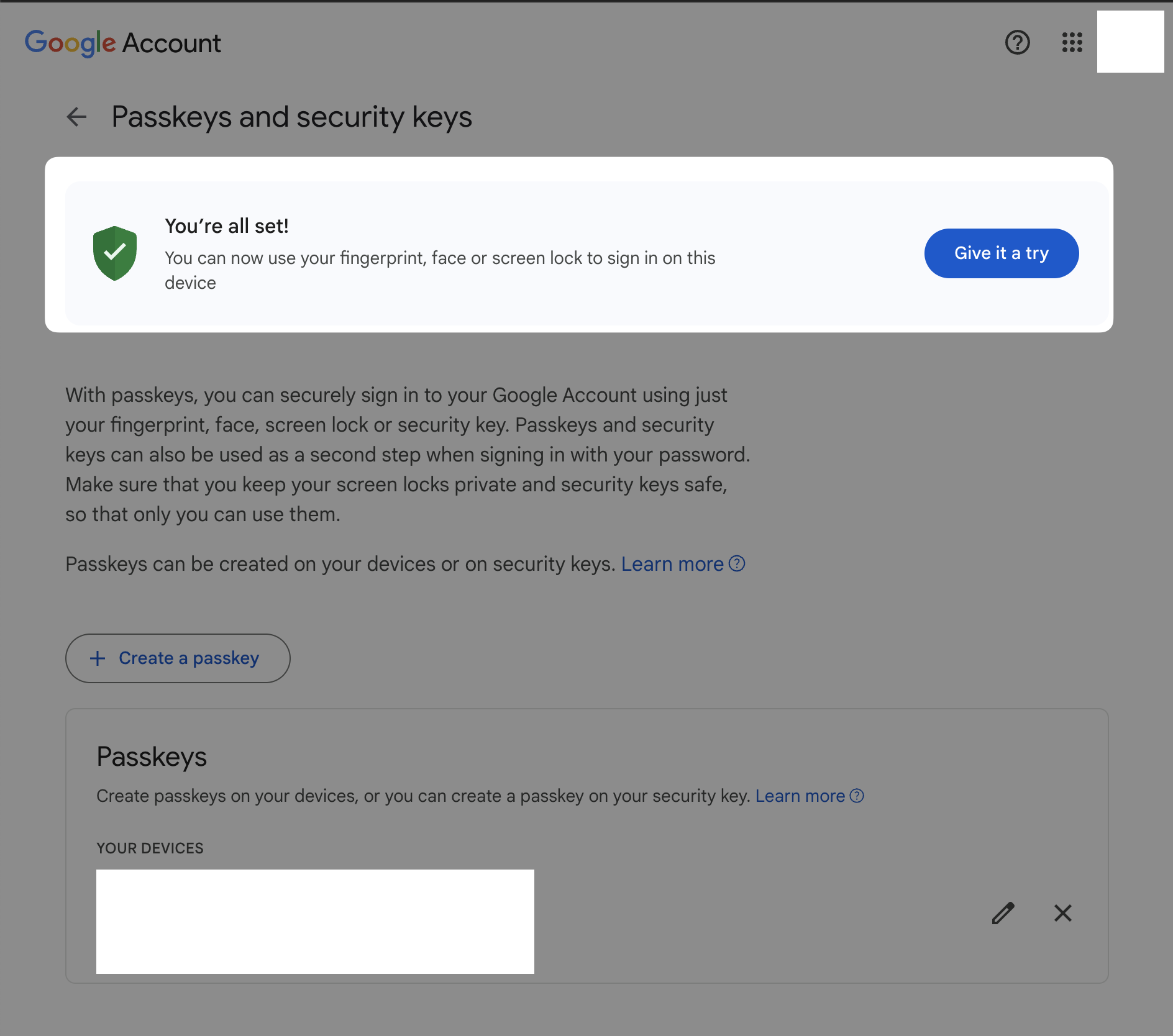
Heading: Passkeys and security keys
Confirmation banner:
| Description | English |
|---|---|
| Title | You're all set! |
| Body | You can now use your fingerprint, face or screen lock to sign in on this device |
| CTA button | [Give it a try] |
Body: With passkeys, you can securely sign in to your Google Account using just your fingerprint, face, screen lock or security key. Passkeys and security keys can also be used as a second step when signing in with your password. Make sure that you keep your screen locks private and security keys safe, so that only you can use them.
Passkeys can be created on your devices or on security keys. [Learn more]
Button: [+ Create a passkey]
Section: Passkeys - Create passkeys on your devices, or you can create a passkey on your security key. [Learn more]
Subheading: YOUR DEVICES
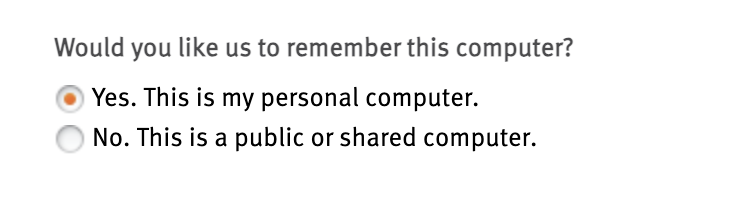
Remember this computer prompt
A "remember this device" choice shown after login, framed around whether the machine is private or shared.
Question: Would you like us to remember this computer?
- (•) Yes. This is my personal computer.
- ( ) No. This is a public or shared computer.