Notes on international shipping from and to Japan
How to use Japan Post's International Mail My Page Service, including EAD rules, contact uploads, and label creation.
Table of contents
Japan Post - international mail
- International Mail labels must be done with Electronic Advance Data (EAD)
- JAPAN Post does not accept postal items addressed to the United States with a handwritten label.
- use the "International Mail My Page Service" to send EMS, international parcels and small packets, etc.
International Mail My Page Service
- Login - International Mail My Page Service
- Online Shipping Tool - JAPAN Post
- Phone Support:
- Japanese: 0120-5931-55
- English: 0570-046-111
- English was faster
- Service Hours
- Weekdays: 8:00~21:00
- Saturdays, Sundays, and holidays: 9:00~21:00
- Upload contacts in bulk using jp-post-contact-upload.csv as a template.
- As of March 29, 2021, JAPAN POST is only sending Small Packets to USA.
- Although the default option for International Mail My Page Service is the
International ePacket, this is not available!
- Although the default option for International Mail My Page Service is the
- The type of Shipping: Small Packets &
AIR
Tips for using Japan Post
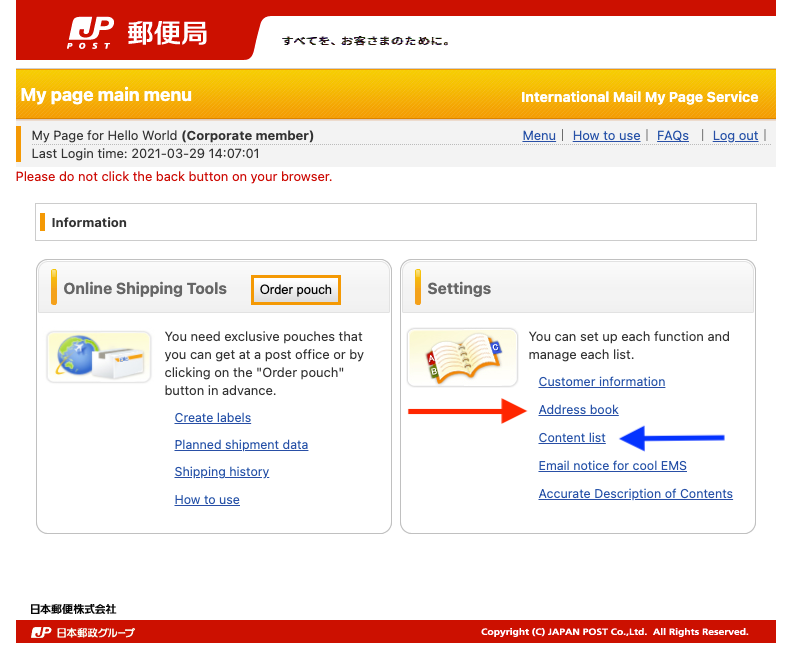
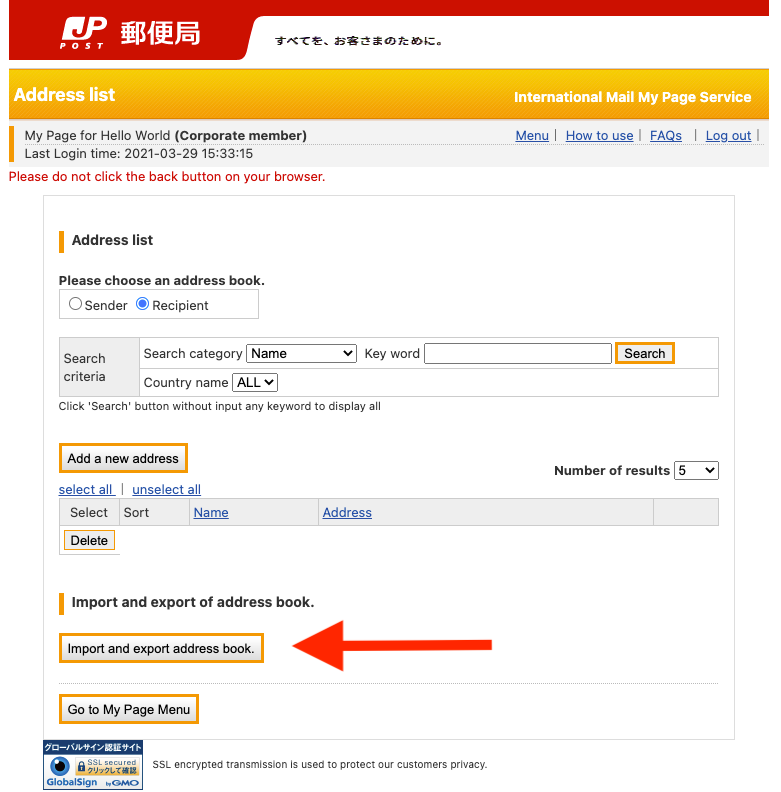
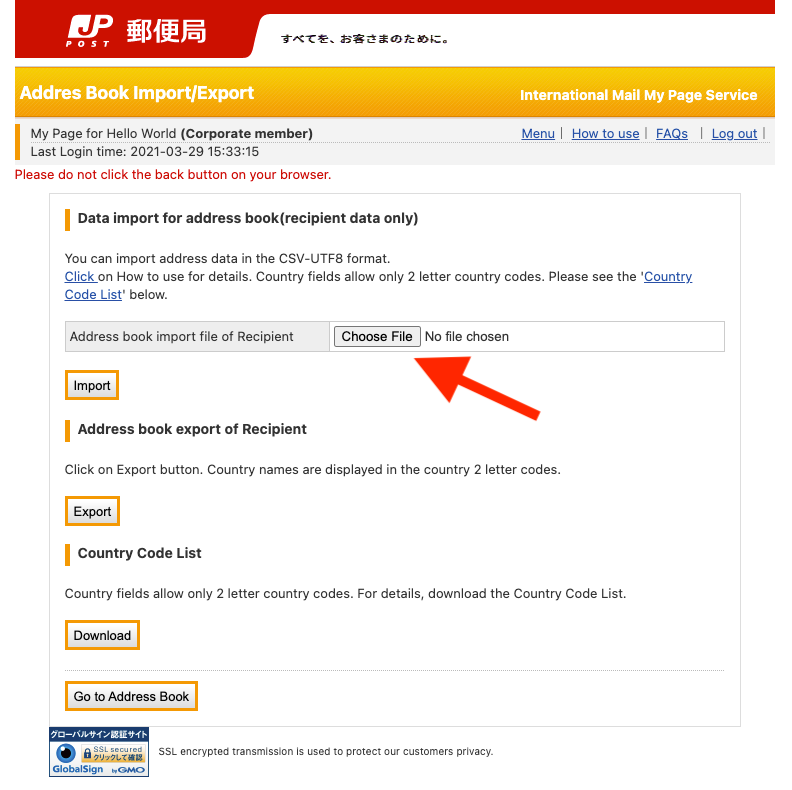
Upload contacts in bulk using the add Address book feature.
Use jp-post-contact-upload.csv as a template.
Make sure all text is inside quotes (
") and no space between the quotes & comma (",")First line should contain the header:
csv"User ID","Name","CompanyName","Department","Postal code","Address 1","Address 2","Address 3","STATES, etc.","COUNTRY","Tel","Fax","E-mail address"Last light should be empty.
Register the items to be shipped ahead of creating the label using Contents List tool.
| Home | Address book | Data Import for Address book | |
|---|---|---|---|
 |  |  |
Demo
Pages went over by the demo videos:
- Home
- Create Label
- Register Sender's Address (Yours)
- Register Recipient's Address (Their)
- Select Shipping Option (Small Packets &
AIR) - Register Content
- Package Details
- Confirmation
- Save & Print Label
jp-post-contact-upload csv file
csv
"User ID","Name","CompanyName","Department","Postal code","Address 1","Address 2","Address 3","STATES, etc.","COUNTRY","Tel","Fax","E-mail address"
"User_Email","Full_Name","Company_Name"," ","00000-0000"," ","00 StreetName ST","Cit","State","US","0000000000"," "," "