Git, GitHubとは? - ブランチの作成とマージ
🇺🇸 English version: 02_Branches_EN.md
このセクションでは、Git Branch を紹介し、最初のブランチの操作について説明します
Overview
- Overview
- git branch コマンド
- 新しいブランチを作成する
- develop ブランチにファイルを追加します
- GitHub での変更の確認
- プルリクエストの作成とマージ
- GitHub repo から Local repo への更新
- Git Branch とは?
- Branch と Webサイト
- Git Push vs Pull - Teamwork
- Hands-on C Review
- GitHub Workflow
- GitHubの概要 - GitHub Website Overview
- GitHub のパーツ
- クイズの時間
- 次のセクション
git branch コマンド
git branch command
-
まず、
learning_gitリポジトリに戻りますcd Documents/learning_git -
git branchコマンドを使用して、リポジトリ内のすべてのブランチと現在使用しているブランチを確認します。git branch ... * main
git branch
- git-branch
- ブランチ一覧を表示するコマンド
- アスタリスク (*) がついているブランチが現在のブランチです
- デフォルトのブランチ名が
masterの場合は、次のコマンドで変更します:git config --global init.defaultBranch main
新しいブランチを作成する
Create a new branch
まず、develop という名前のブランチを作成して移動しましょう。
git checkout -b develop

...

Switched to a new branch 'develop'
git checkout -b <branch name>
- リポジトリに新しいブランチを作成して、そのブランチに移動するコマンドです。
- git-checkout Doc
develop ブランチにファイルを追加します
Add a file to the develop branch
-
developブランチ上でファイルを作成します。touch develop_file.md -
git addとgit commitを実行して、ローカルリポジトリに保存します。git add develop_file.md git commit -m "develop only"[develop 4f98baf] develop only 1 file changed, 0 insertions(+), 0 deletions(-) create mode 100644 develop_file.md -
git statusを実行して、変更が保存されたことを確認します。git statusOn branch develop nothing to commit, working tree clean -
git pushを実行して、GitHubリポジトリに変更をプッシュします。git push -u origin developEnumerating objects: 4, done. Counting objects: 100% (4/4), done. Delta compression using up to 4 threads Compressing objects: 100% (2/2), done. Writing objects: 100% (3/3), 277 bytes | 277.00 KiB/s, done. Total 3 (delta 0), reused 0 (delta 0), pack-reused 0 remote: This repository moved. Please use the new location: remote: https://github.com/ahandsel/learning_git_3.git remote: remote: Create a pull request for 'develop' on GitHub by visiting: remote: https://github.com/ahandsel/learning_git_3/pull/new/develop remote: To https://github.com/ahandsel/learning_git_3.git * [new branch] develop -> develop Branch 'develop' set up to track remote branch 'develop' from 'origin'.
GitHub Desktop Appで確認する
GitHubデスクトップアプリで表示して変更を確認しましょう
-
次のコマンドでアプリを開きます:
cd learning_git github . -
アプリが
Add Local Repository設定ページを開き、Add Repositoryボタンをクリックします -
Historyタブをクリックして、行った変更を確認します
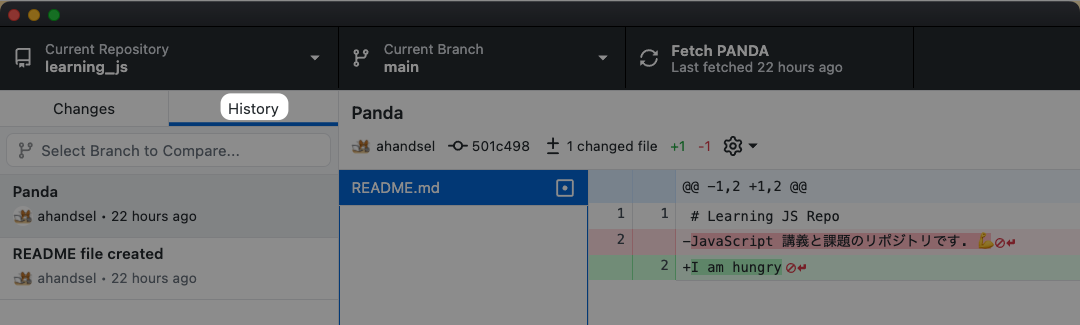
GitHub での変更の確認
See the changes on GitHub
GitHub リポジトリの Network graph [ネットワークグラフ] 設定に移動して、行った変更を確認します
https://github.com/USER/REPO/network- 例:
https://github.com/ahandsel/Git_GitHub_Slides/network
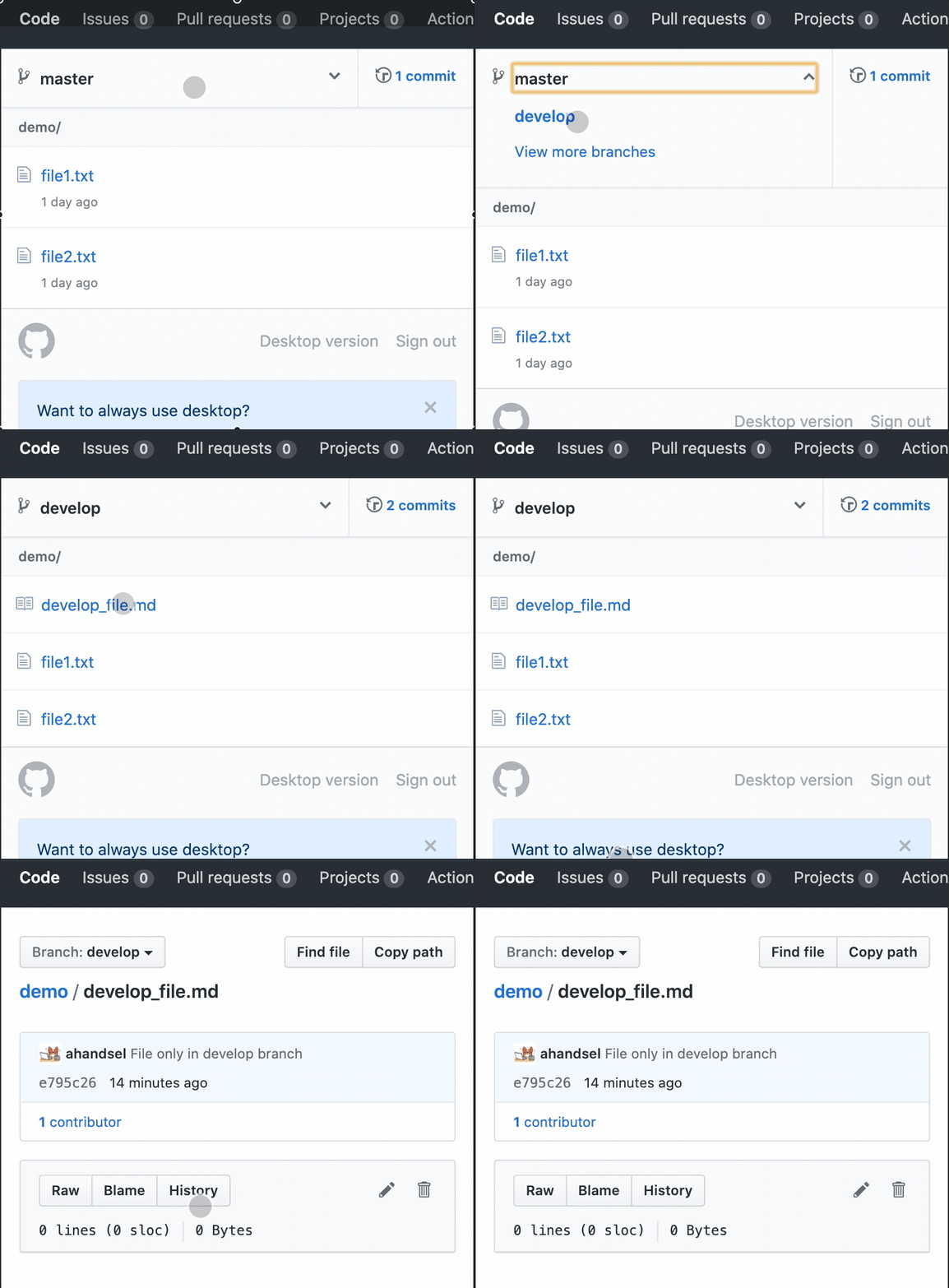 |
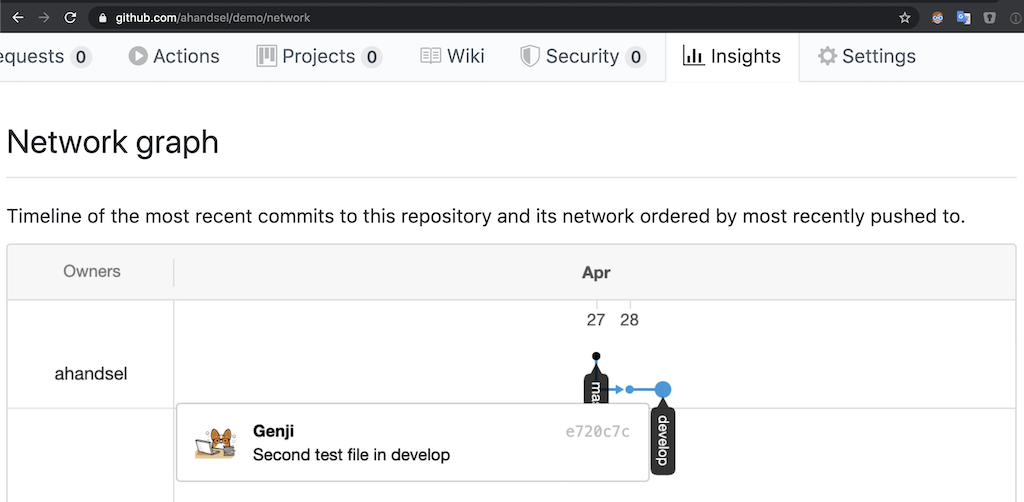 |
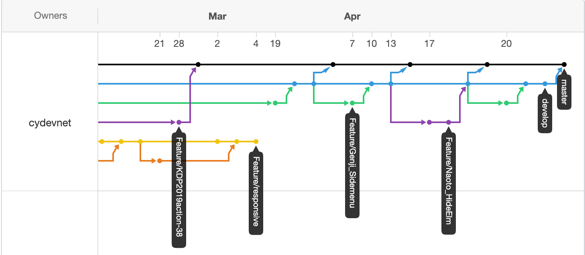 |
プルリクエストの作成とマージ
Create & Merge a Pull Request
Pull Requests で、実際にファイルが変更される前に、他のユーザーの変更などを確認できます。
- コードレビューなどに使われます。
develop ブランチを main ブランチにマージするために、GitHub で Pull request を作成します。
- 変更を確認し、
Pull Requestをマージします。
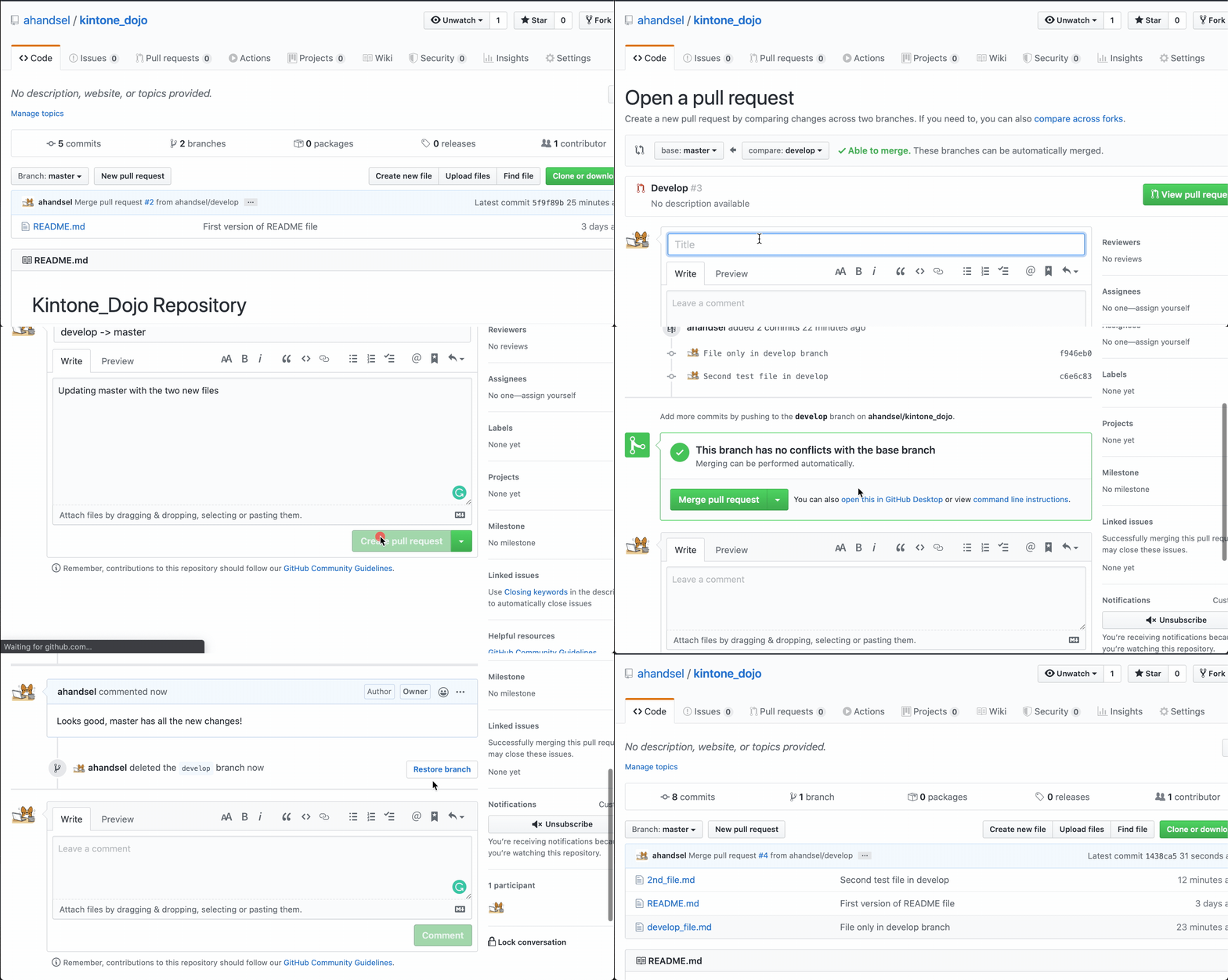
main ブランチに2つの新しいファイルが表示されました!
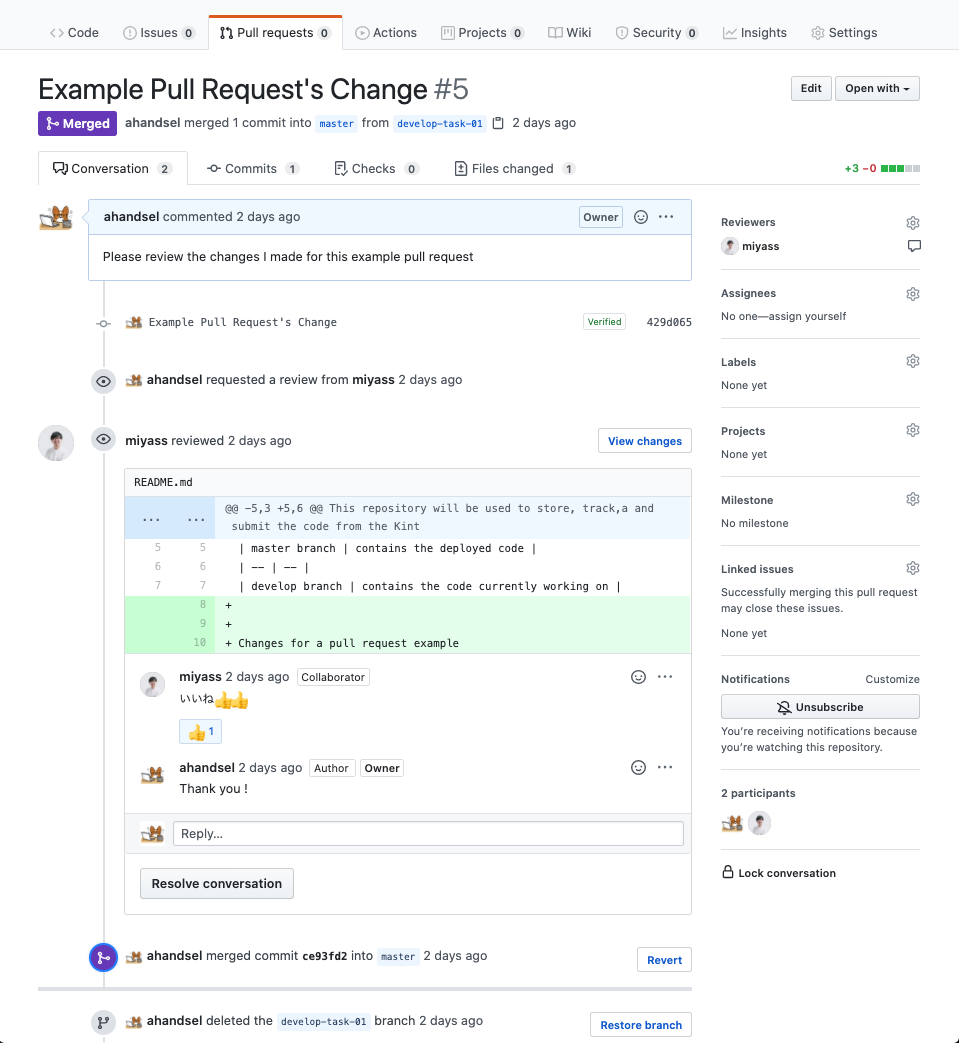
GitHub repo から Local repo への更新
Update local repo from GitHub repo
main ブランチに移動しましょう。
git checkout main
現在、GitHubリポジトリはローカルリポジトリよりもファイルが最新になっています。
Switched to branch 'main'
Your branch is behind 'origin/main' by 4 commits &
can be fast-forwarded
(use "git pull" to update your local branch)
git pull コマンドを使用して対応します
git pull origin main で最新のリポジトリのバージョンを GitHub からローカルに pull します
git pull origin main
remote: Enumerating objects: 1, done.
remote: Counting objects: 100% (1/1), done.
remote: Total 1 (delta 0), reused 0 (delta 0), pack-reused 0
Unpacking objects: 100% (1/1), 631 bytes | 210.00 KiB/s, done.
From https://github.com/ahandsel/kintone_dojo
* branch            main     -> FETCH_HEAD
  5f9f89b..1438ca5  main     -> origin/main
Updating d775d42..1438ca5
Fast-forward
2nd_file.md     | 0
develop_file.md | 0
2 files changed, 0 insertions(+), 0 deletions(-)
create mode 100644 2nd_file.md
create mode 100644 develop_file.md
これで main ブランチと develop ブランチは同じ状態になりました。
なのでdevelop ブランチを削除しましょう。
git branch -d develop
Deleted branch develop (was c6e6c83).
git branch コマンドで確認しましょう
git branch
* main
Git Branch とは?
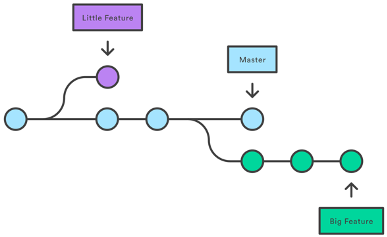
ブランチとは?
- コミットの動くポインタ。
- 複数のタイムラインで管理し、メインラインに影響を与えることなく変更できます
git checkout- ブランチを切り替えるコマンド。
git branch -d <branch-name>- ブランチを削除するコマンド。
なぜブランチを使うのですか?
- 安定した版、開発版、実験版などを分離するため。
- 例: このGitHubスライド
- 各ハンズオンとコンセプトセクションをブランチにできます。
- それぞれを同時に開発できます。
Branch と Webサイト
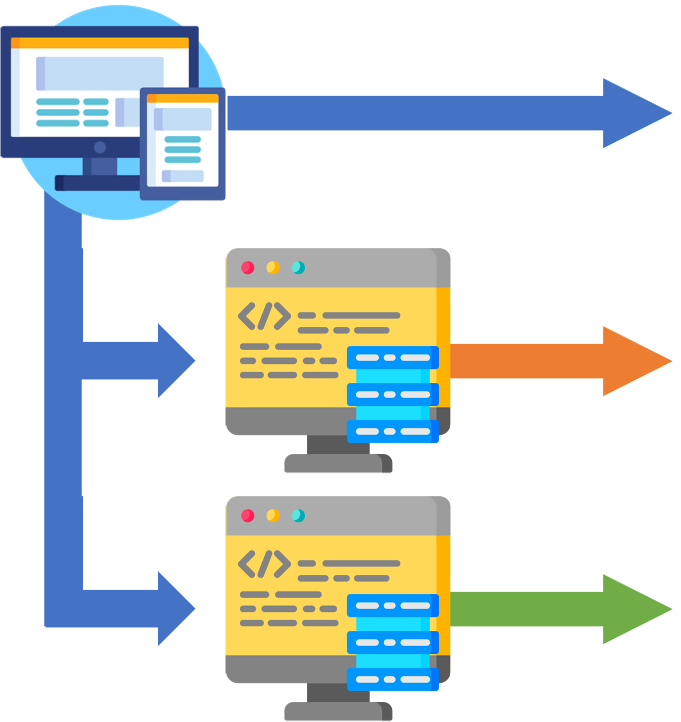
main ブランチには、Webサイトを実行するコードが存在します。
- もし
mainブランチで変更が加わると、ユーザーに影響を与えてしまいます!!
2人の開発者が同時にWebサイトを変更したい場合、3つのブランチを作成します
main→ ライブコードfeature_A→ 開発者Aが実装するfeature_B→ 開発者Bが実装する
開発が完了したら、ブランチをマージします!
Git Push vs Pull - Teamwork
git push |
git pull |
|---|---|
| 「アップロード」 コマンド | 「ダウンロード」 コマンド |
| 「プッシュ」は、ターゲットリポジトリに変更を強制します。 | 「プル」はターゲットリポジトリから変更を取得します |
[あなたのコード] ⟾ プッシュ ⟾ [ターゲット] |
[あなたのコード] ⏎ プル ⏎ [ターゲット] |
| 「プッシュリクエスト」は、変更をプッシュするように要求するターゲットリポジトリです。 | 「プルリクエスト」とは、変更を取得するためにターゲットリポジトリをリクエストすることです。 |
 |
 |
Hands-on C Review
git checkout -b develop |
ブランチを切り替えるコマンド |
| ブランチを使う理由 | コードの開発、テスト、公開バージョンなどを分離する |
Pull Requests と git pull |
「プルリクエスト」とは、変更を取得するためにターゲットリポジトリをリクエストすることです。 |
GitHub Workflow
Understanding the GitHub flow · GitHub Guides
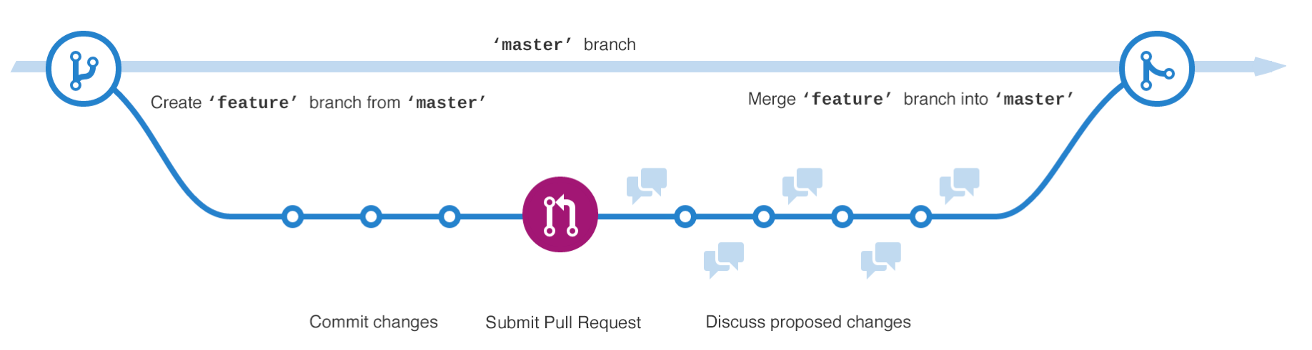
| # | Step | Notes |
|---|---|---|
| 1 | Create a branch | main から feature ブランチを作成して開発を開始します |
| 2 | Commit changes | コード実装が完了したら、commit を作成します。 commit を作成することで変更履歴を確認できて、ロールバックと参照が可能になります。 |
| 3 | Open a Pull Request | 実装内容を他の人と共有する準備ができたら、Pull Request を作成します。 |
| 4 | Discuss & Review Code | チームメンバーからコードのレビューをもらい、議論します。 |
| 5 | Deploy & Test | コードをテスト環境にデプロイして問題なく機能することを確認します。 |
| 6 | Merge to main | これで実装内容が有効になり、Pull Request はコードに対する変更履歴の記録を保持します。 |
Detailed Overview of the GitHub Workflow
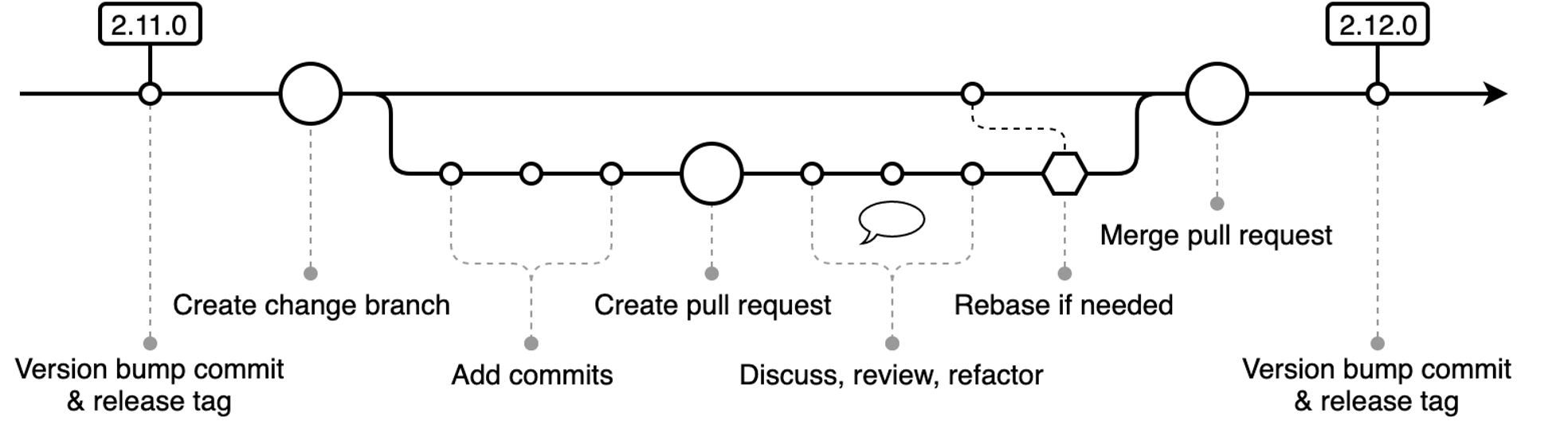
Git Common-Flow 1.0.0-rc.5 - Git Common Flow
GitHubの概要 - GitHub Website Overview
GitHub Repository

GitHub Repository - Code
- コードやドキュメントなど、プロジェクトに関連するすべてのファイルを保持するコンテナです。
- GitHubに保存されているすべてのファイルは、gitでバージョン管理されています
- リポジトリはしばしば「リポ」と短縮されて呼ばれます
- リポジトリの下部に表示される、プロジェクトの紹介などを表示するためのファイルです
GitHub Issues

- ユーザーがリポジトリの内容に関して議論する場所
- 課題をユーザーに割り当て、ラベルを追加して読みやすくできます
GitHub Pull Request

- ユーザーがリポジトリに変更を加えたいときに使われます
- 例: README.mdファイルを新しく追加したい時
GitHubの概要
Project boards: KANBAN形式でのタスクボードです
Wiki: 関連するプロジェクトドキュメントの作成と保存ができます
Insight: リポジトリの分析ツール
Networkグラフ: コミットとブランチをタイムラインで視覚化しますPulse: 進行中、あるいは完了したタスクを表示します
GitHub のパーツ
| Branch | コードの代替タイムライン 例: マスター、開発、機能/ xxx |
| Commit | ファイルの変更をリポジトリに保存する |
| Pull Request | 提案している変更を他の人と共有する |
| Merge Pull Request | 実際にブランチ (マスターなど) を変更して更新する |
クイズの時間
git checkout -b developは何しますか?- ブランチを使う理由は?
Pull Request(プルリクエスト) とは?
次のセクション
講義ガイド一覧
README.md ⚙️